Multi-Buy Cards

Save Up To 50%!
The more cards you add to your basket, the bigger the discount you receive!
Find Your Multi-Buy Discount

3-4 Cards
Get 10% Off!
5-9 Cards
Get 15% Off!
10-14 Cards
Get 25% Off!
15-19 Cards
Get 30% Off!
20-24 Cards
Get 40% Off!
25+ Cards
Get 50% Off!
Christmas Cards Perfect for Multi-Buy
Send One Card to Many

Choose Your Card
Select the card you'd like to send to your recipients

Split Your Order
At the Delivery Address step, you can now select 'Send To Different Addresses'

Select Addresses
Simply select your recipients and complete your order. It’s that easy!
Bulk Add Addresses

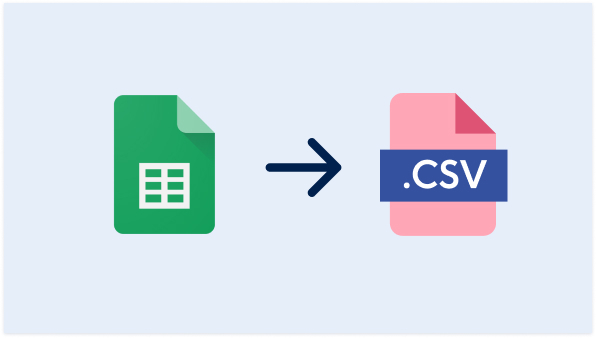
Prep Your CSV File
Download the template and follow the instructions below.

Add Addresses
In your Address Book or at Checkout, select 'Bulk Add Addresses'.

Upload CSV
Upload your CSV file and easily add all your addresses at once!
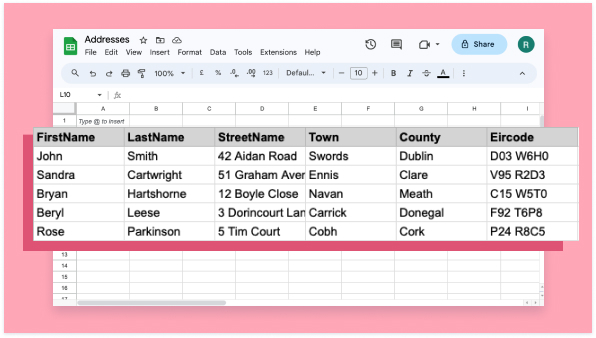
Prepping Your CSV File
Adding your addresses has never been easier. Download the template and prep your file, When you’re ready, upload your CSV file to your address book.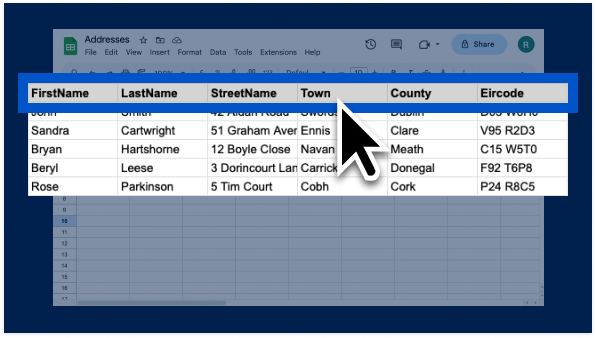
Using a CSV File
To use a CSV file we need the following information from you. Take a look at the template too! - First name - Last name - Address - Postcode - Country A header row is required, but your file doesn’t need to be in any particular order.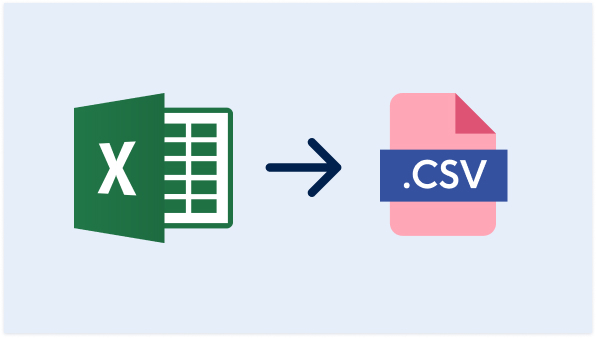
How to save Excel into CSV
1. Go to File (top right corner) → Save As. 2. Click Browse. 3. In the Save As dialog box, under Save as type box, choose the text file format for the worksheet; for example, click CSV (Comma delimited). 4. Browse to the location where you want to save the file, then click Save.